Drink Butler
An offline cocktail browser: about 190 recipes with photos, filters, a "what can I make?" bar, a shopping list, favorites, and recipes read aloud. It needs no Wi-Fi and no account.
Getting started
- Switch it on with its power switch. It charges over USB-C.
- A logo shows at start-up and when the screen wakes. Tap it to go to Home.
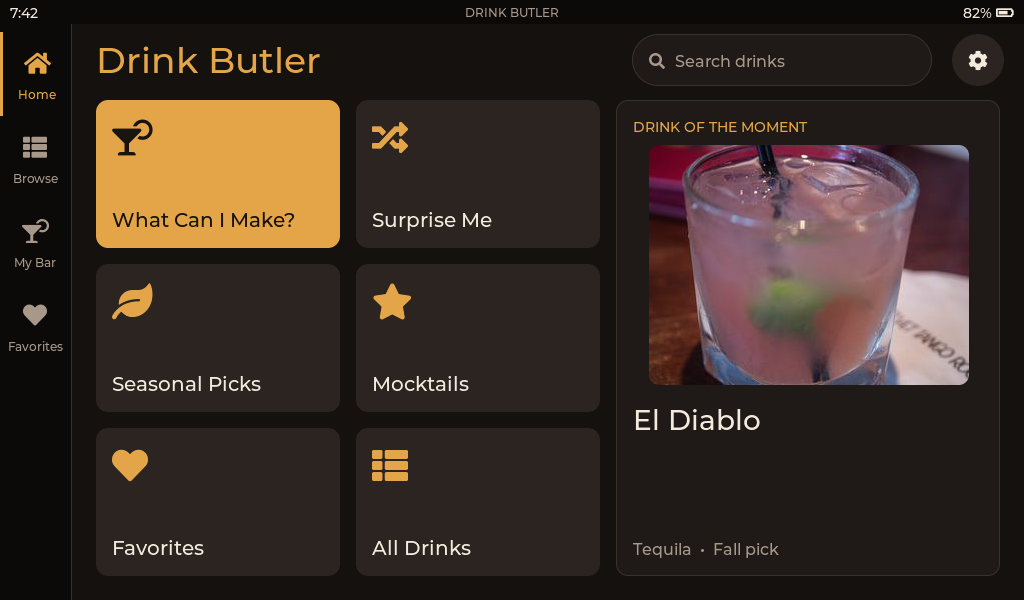
- The four places are on the left edge (on the small model, along the bottom): Home, Browse, My Bar and Favorites.
- After a while without a touch, the logos cycle as a screensaver, then the screen turns off (see Screen off after). Touch the screen to wake it.
Home
- Drink of the moment: a suggestion that changes with the season. Tap it to open the drink.
- What Can I Make? opens your results from My Bar.
- Surprise Me opens a random drink.
- Seasonal Picks, Mocktails, All Drinks and Favorites open ready-made lists.
- The search field opens a keyboard. Type part of a drink's name or an ingredient.
Browse and filters
Browse lists every drink, A to Z. Tap a drink to open it; on the 7" screen it opens on the right.
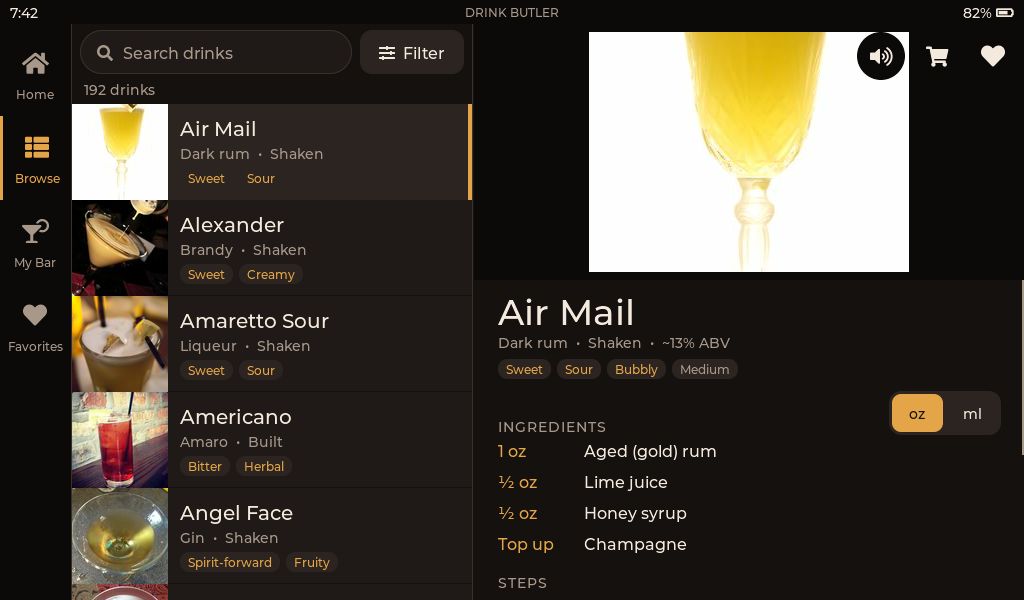
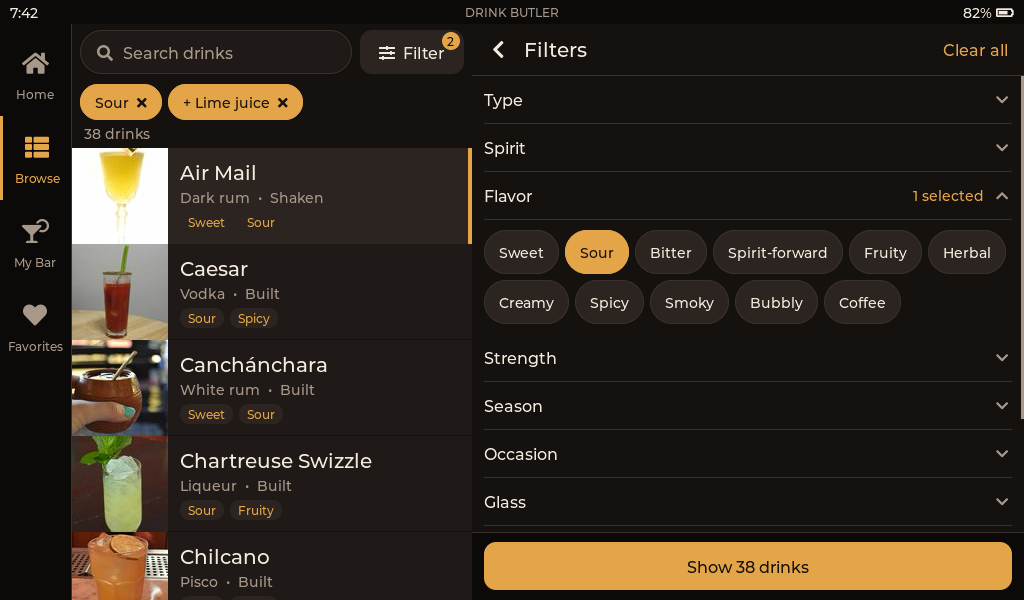
Filters narrow the list by spirit, flavor, season, glass, method, strength and more. Active filters show as chips above the list; tap a chip's × to remove it.
- Ingredients: tap once to require an ingredient, twice to exclude it.
- The button at the bottom shows how many drinks match. Clear all starts again.
A drink's page
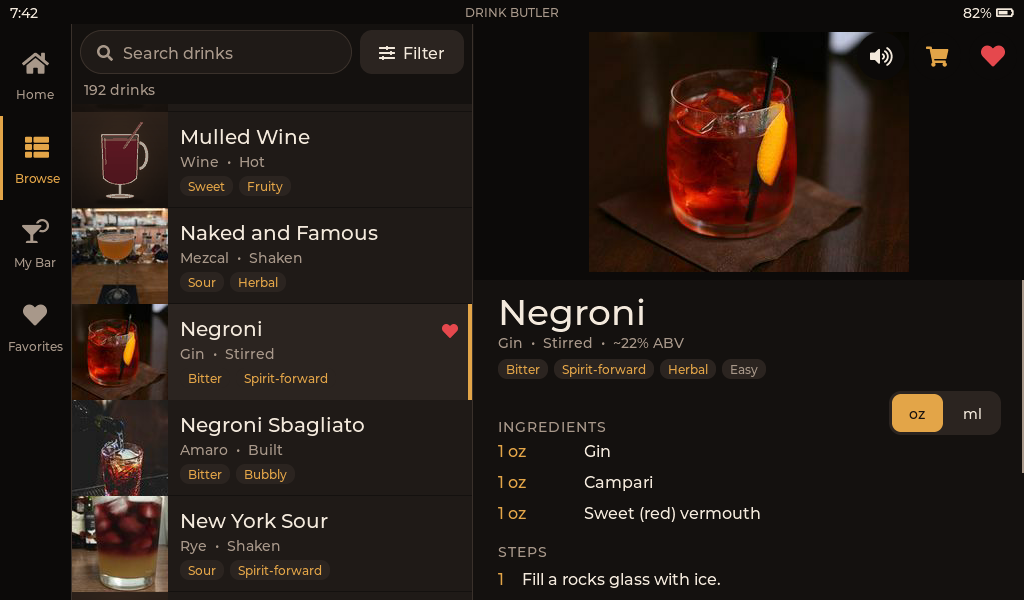
| Button | What it does |
|---|---|
| Heart | Adds the drink to Favorites (red when it's there). |
| Cart | Adds the drink to the shopping list (amber when it's there). |
| Speaker | Reads the recipe aloud; tap again to stop. Hold it to switch between the female and male voice. |
| oz / ml | Switches the units of the ingredient amounts. |
Scroll down for the steps, the glass and garnish, and the photo credit.
My Bar: your bottles
Open My Bar and pick My bar at the top. Ingredients are grouped by type.
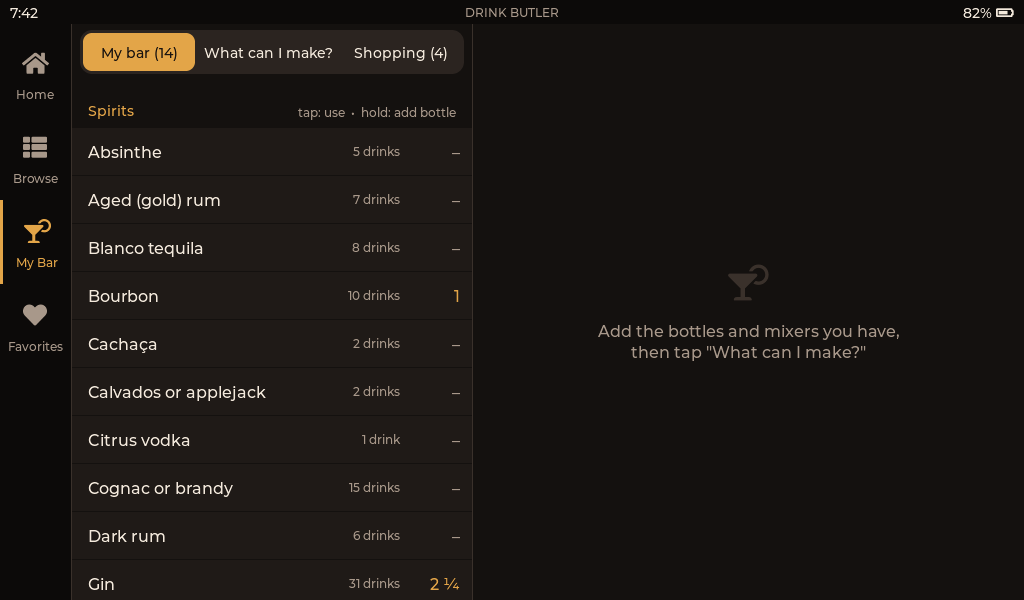
Bottles (spirits, liqueurs, wine, bitters, syrups)
These show how much you have: – for none, then ¼, ½, ¾, 1, 2 ¼ bottles and so on.
| Do this | To |
|---|---|
| Hold | Add a bottle. Keep holding to add one more about every second. |
| Tap | Use some. With more than one bottle, a tap takes a whole bottle off. On the last bottle it goes down a quarter at a time: 1 → ¾ → ½ → ¼ → none. |
| Tap at none | Puts back one full bottle. |
Everything else (juices, mixers, dairy, eggs…)
A tick box: tap to say you have it, tap again to clear it.
Garnishes and water never stop you making a drink, so they aren't listed.
What can I make?
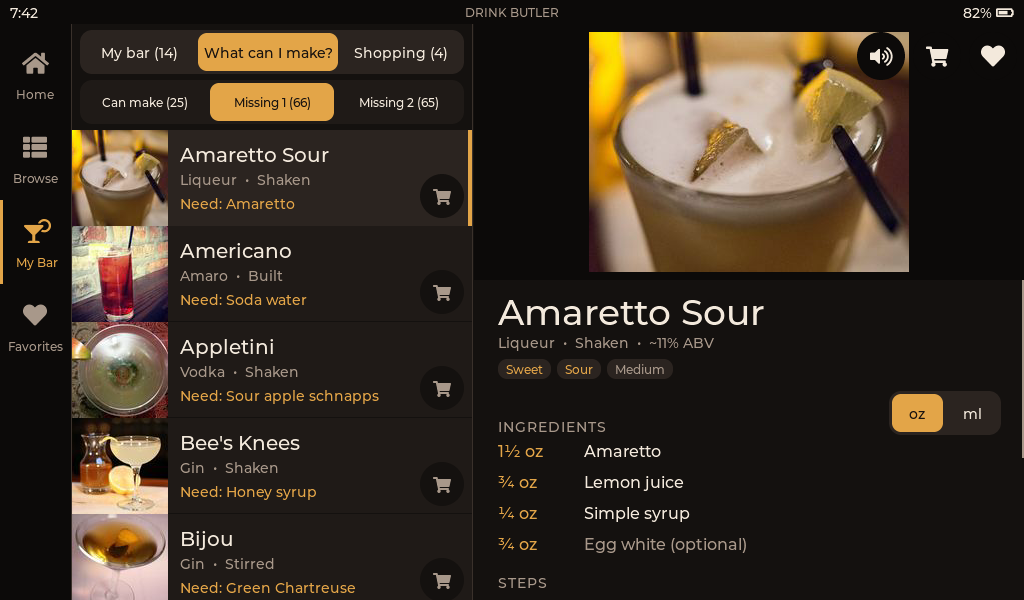
In My Bar, pick What can I make?. Drinks are sorted into three groups:
- Can make: you have everything.
- Missing 1 and Missing 2: each drink shows what it still needs.
Anything you have counts, even ¼ of a bottle. Where a recipe allows a substitute you own (lemon for lime, say), that counts too. Optional ingredients never count against a drink. Each drink has a cart button to add it to the shopping list.
Shopping list
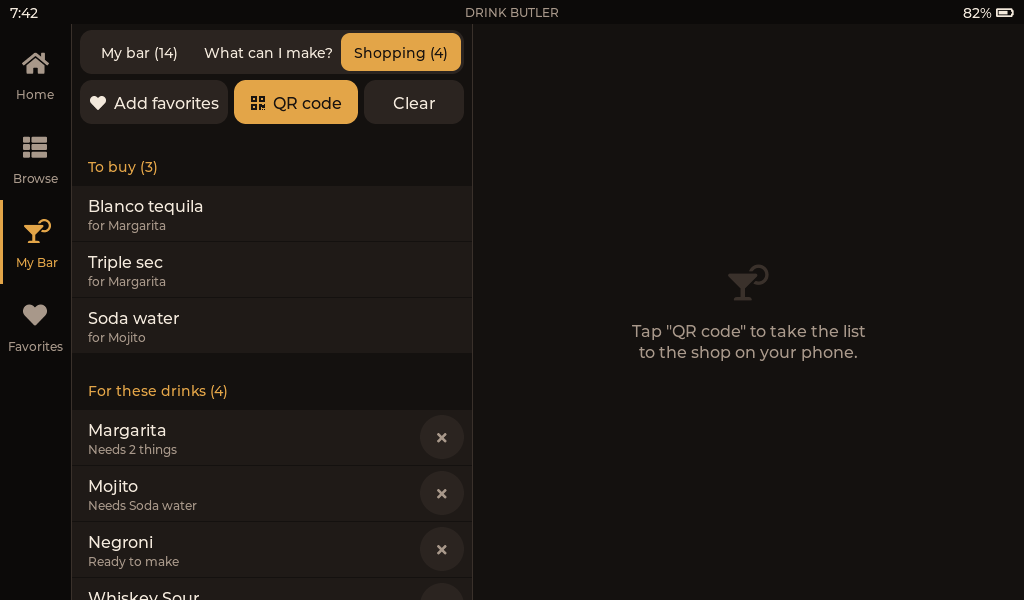
Pick drinks you want to make, and Drink Butler works out what to buy.
- Add drinks with the cart button on a drink's page or in What can I make?, or tap Add favorites to add all your favorites.
- In My Bar, pick Shopping. To buy lists what the picked drinks still need, and which drinks need each thing. Below it are the picked drinks: tap one to open it, or × to remove it.
- Tap QR code and scan it with your phone's camera. Your phone opens the list as a checklist to tick off in the shop. On an iPhone, Share… sends it to Notes, Reminders or Messages.
When you're back, set the new bottles in My Bar; they drop off the list on their own. Clear empties the list (tap it twice to confirm).
Privacy: the list travels inside the QR code's link, after the #. Phones never send that part to the web server, so the list stays between Drink Butler and your phone.
Favorites
Every drink you've hearted, A to Z. Tap the heart on a drink's page again to remove it.
Settings
On Home, tap the gear in the top corner.
| Setting | |
|---|---|
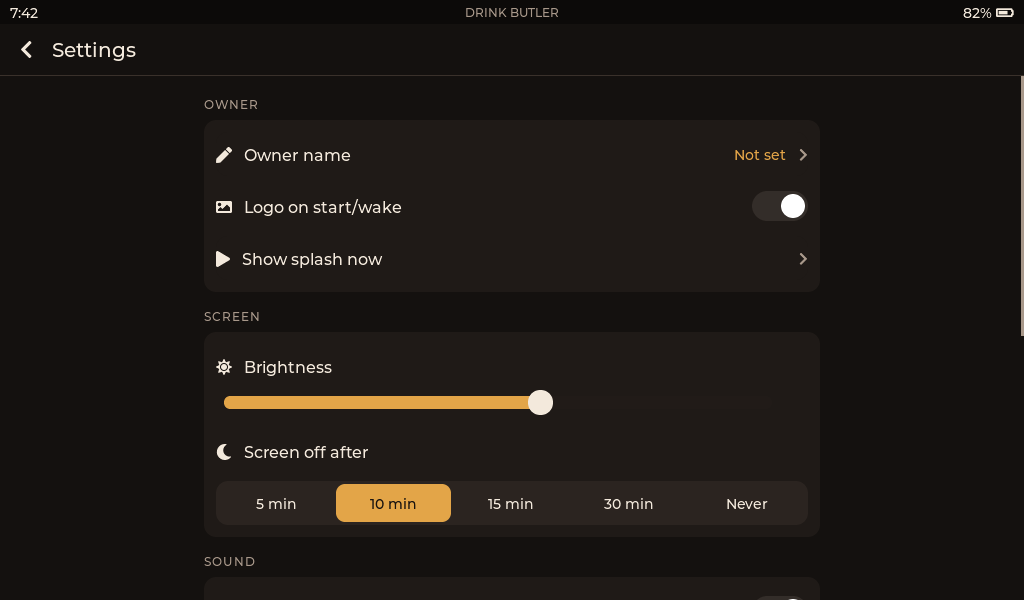
| Owner name | Shown on Home and on the logos ("Maria's bar"). |
| Brightness | Screen brightness. |
| Screen off after | 5, 10, 15 or 30 minutes without a touch, or Never. |
| Sound effects, Volume | Taps and clinks, and how loud they and the recipe voice are. |
| Recipe voice | Female or male voice for reading recipes aloud. |
| Units | oz or ml. |
| Logo on start/wake | Show a logo at start-up and when the screen wakes. Show splash now previews it. |
| Credits | Where the recipes and photos come from, with each photo's license. |